



I approached Keep Clean - File Master as a practical phone-maintenance tool rather than expecting it to transform an older device overnight. Its promise is straightforward: help me remove unwanted files, understand where storage is going, lock selected apps, and check basic device information from one place. After using it in that role, my view is that it works best as a simple housekeeping companion for people who want a more approachable alternative to digging through Android’s settings.
The app sits in the productivity category, which makes sense because its value comes from reducing small maintenance jobs rather than entertaining me or replacing a major work tool. It is free to use, carries an Everyone age rating, and is developed by Beijing Yuexi Qingfeng Culture Media Co., Ltd. The current release is version 1.0.18, and it supports devices running Android 7.0 or later. Those details make it accessible to a broad range of Android users, including people with older phones who may be running short on space.
What Keep Clean does well in everyday use
The strongest part of the experience is the way it brings several unrelated chores into one recognizable destination. Instead of opening storage settings, searching for a separate app-lock utility, and then looking elsewhere for hardware details, I can begin from the same general toolset. That does not make the underlying tasks more powerful than Android’s built-in options, but it does make them easier to remember and repeat.
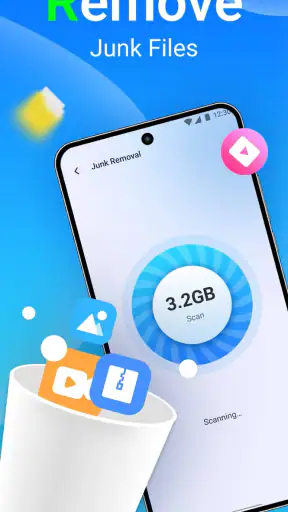
The junk-file function is most useful when I treat it as a review step, not as a button I press without thinking. A cleanup tool can identify files that appear unnecessary, but “unnecessary” is not always the same as “safe to remove” in a person’s real life. I would still look over categories and file names before confirming a broad cleanup, especially on a phone used for messaging, work documents, travel tickets, or offline media.
That cautious workflow is one of my main recommendations: scan first, inspect second, clean third. It takes a little longer than accepting every suggested deletion, but it lowers the chance of removing something I planned to keep. The app is more valuable when it helps me make that decision than when I treat it as an automatic vacuum cleaner.
Storage management is another area where the app can save time. When a phone feels crowded, the problem is rarely one dramatic file. It is usually a mixture of old downloads, forgotten installers, duplicate-looking images, cached material, and apps that have not been opened in months. A central storage view gives me a better starting point than guessing which folder is responsible.
I particularly like using a cleanup tool before a major download or a system update. In that situation, the goal is not to reclaim every possible byte. I only need enough room to complete the task without repeatedly deleting random photos or uninstalling something I may need later. This is a more realistic use than running a cleaning routine every day.
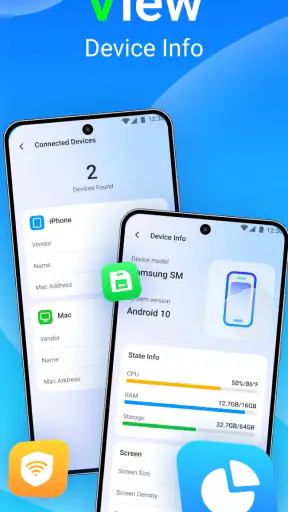
The device-information area also has a quiet practical benefit. Many people do not know where to find the Android release, available storage, or other basic details when troubleshooting a phone. Having those details presented alongside storage tools can make it easier to explain a problem to a family member or decide whether an app is suitable for the device.
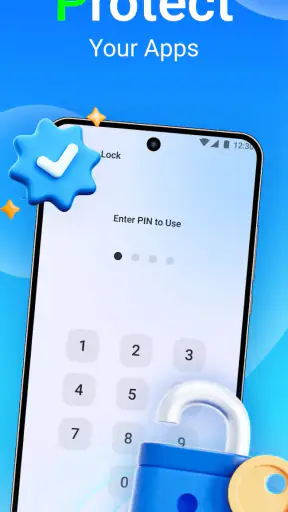
App locking gives the package a second purpose beyond storage. I can see why this would appeal to someone who lends a phone to a child, lets a friend browse photos, or wants an extra barrier around a messaging or finance app. It is not the same as full account security, and I would not mistake it for protection against every kind of access, but it can be useful for casual privacy situations.
The important distinction is convenience versus security. A lock inside a utility app may help prevent an accidental glance, yet I would still rely on the phone’s main screen lock and the security settings of sensitive services. For a shared household device, that layered approach makes more sense than depending on the app lock alone.
A sensible cleanup routine for a crowded phone
My preferred routine starts with the device-information screen. I first check the available space and note whether the problem is urgent or merely inconvenient. If I still have comfortable room, I avoid aggressive cleaning and instead remove only items I recognize. If storage is genuinely tight, I move through the cleanup suggestions slowly and then check the result in the phone’s normal storage settings.
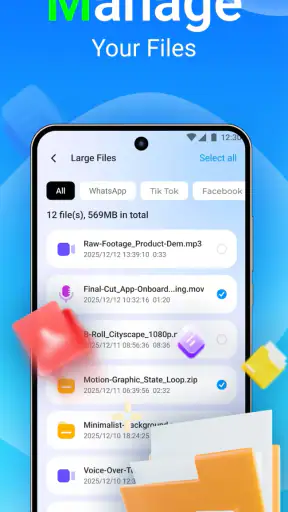
Next, I look at downloads and large personal files outside the automatic cleanup process. This is where human judgment matters most. A video saved for a trip or a document needed for work may look like ordinary clutter to a scanner. The app can help me locate candidates, but I remain responsible for deciding what has value.
Finally, I review apps that I no longer use and uninstall them through the normal Android process when appropriate. This is a useful trade-off to understand: a cleaner can highlight the symptoms of a full phone, but the biggest long-term improvement often comes from changing what stays installed. Keep Clean is a convenient starting point, not a substitute for occasional digital housekeeping.
Another non-obvious advantage is that the combined layout can encourage a repeatable habit. If I had to remember four separate settings paths, I would probably postpone the task until the phone became frustrating to use. When storage, locking, and device details are presented together, a short monthly check feels more manageable. The benefit is behavioral as much as technical.
Where it is more convenient than the usual alternatives
Android already includes storage controls, and many phone manufacturers add their own device-care panels. Those built-in tools are often the better choice when I want the deepest system integration or the clearest explanation of how a particular category is calculated. They are also the natural first stop for uninstalling apps, checking battery behavior, and managing system-level settings.
Keep Clean becomes more appealing when I want a simpler, more focused interface for a handful of common chores. I do not have to remember which manufacturer placed a storage shortcut in which submenu. That can be especially helpful for someone who changes phones, helps relatives with different Android interfaces, or prefers a single utility instead of learning every manufacturer’s layout.
Dedicated file managers are usually stronger for detailed folder work. They give me more control when I need to rename, move, archive, or inspect individual files. Dedicated privacy tools may also offer more specialized controls than an all-purpose utility. The trade-off is that each extra app adds another interface to learn. Keep Clean’s appeal is breadth and simplicity, not professional-grade file administration.
I also would not install it solely because I expect a dramatic speed increase. Removing clutter can improve available space and make ordinary maintenance easier, but storage cleanup is not a universal cure for slow performance. A phone can feel sluggish because of an aging battery, demanding apps, network issues, or limited hardware. The app can help me investigate one part of the problem, but it cannot solve all of those causes.
The limitations I noticed before recommending it
The biggest limitation is the unavoidable ambiguity around junk files. Any automatic suggestion system must make assumptions about what I no longer need. Those assumptions may be reasonable, but they cannot understand the personal meaning of every file. I would be uncomfortable recommending a completely hands-off cleanup habit to someone who keeps important attachments or rarely backed-up photos on the phone.
There is also a risk of feature overlap. If a phone already has a clear, trustworthy storage manager and a built-in app-lock option, adding another utility may not be necessary. In that situation, Keep Clean could make the experience feel more complicated rather than less. I would compare the existing tools first instead of installing it automatically.
App locking has its own practical friction. A lock is useful only if I remember the method used to open protected apps and if the feature behaves consistently with the phone’s normal security setup. I would test it with a non-critical app before relying on it for something sensitive. For serious privacy needs, the operating system’s security controls remain more important.
The app’s broad purpose can also create different expectations. Someone looking for a full file-management workstation may find the experience too limited, while someone who wants a single tap to fix every performance issue may be disappointed. I see it as a middle-ground utility: more organized than scattered settings, less specialized than a dedicated file manager or security product.
Its public reception is reasonably positive without suggesting universal approval. It has a 3.9 average from around 2.8 thousand ratings, along with over a million installs. I read that as evidence of useful everyday appeal, but not as a reason to ignore the need for careful cleanup decisions. The app is free, which lowers the barrier to trying it, though I still judge any utility by how much control and clarity it gives me rather than by price alone.
Who should use it, and who should skip it
I would recommend Keep Clean to Android users who regularly run low on space and want a less fragmented way to handle basic maintenance. It is also a sensible option for people who are uncomfortable navigating manufacturer-specific settings, or for anyone helping a less technical relative keep a phone organized.
It fits a shared-device scenario particularly well. Imagine lending a phone to a child for a long car journey. Before handing it over, I could check storage, remove obvious temporary clutter, and place an extra lock on selected apps. Afterward, I could inspect the device again rather than hunting through several unrelated menus. That is a modest workflow, but it is exactly the kind of situation where convenience matters.
I would be more cautious about recommending it to power users who already maintain their files manually. If I need precise folder operations, automated backups, duplicate detection with detailed controls, or advanced security management, I would look for specialized tools instead. The same applies to anyone who dislikes adding utilities that overlap with features already built into the phone.
People with very sensitive data should also keep their expectations realistic. I would use the app as an organizational aid, not as my only privacy layer. A strong device passcode, sensible permissions, backups, and careful file handling matter more than any single cleanup or locking feature.
The minimum operating-system requirement is another practical point in its favor. Support for Android 7.0 or later means it can be considered on older compatible devices rather than being limited to recent phones. Still, older hardware can behave differently from newer models, so I would begin with a light scan and observe how the app fits into the phone’s normal settings before making it part of a regular routine.
My verdict after using it as a maintenance tool
Keep Clean - File Master succeeds when I use it for what it is: a convenient hub for storage cleanup, app locking, and basic device checks. Its best quality is not a magical performance boost, but the way it turns several easy-to-forget tasks into one approachable maintenance routine. That makes it useful for ordinary Android owners who want guidance without learning every system menu.
My advice is to use its scan results as recommendations, inspect anything personal, and confirm important files are backed up before removing them. I would pair the app lock with the phone’s main security features, and I would compare its tools with the built-in options already available on the device. Those small precautions address the main weaknesses without taking away its convenience.
With a 3.9 average and a user base of over a million installs, it has enough real-world visibility to be worth considering, while its free availability makes testing straightforward. The Everyone rating also makes its intended audience broad, but that does not mean every user needs it. My final recommendation is specific: try it if your phone feels cluttered and you want one simple place to begin; skip it if your built-in tools already cover these jobs or if you need advanced file control and stronger privacy specialization.
For me, the app earns its place as a practical first step rather than a complete phone-management solution. Used thoughtfully, it can make routine cleanup less intimidating and help prevent storage problems from becoming urgent. Used blindly, it cannot replace personal judgment. That balance is the key to getting genuine value from it.


